



There are five ways to insert a signature in Excel:
- Add a visible signature line (uses Excel’s built-in Microsoft Office Signature Line, Windows only)
- Add an invisible digital signature (signs the file without a visible placeholder)
- Draw your signature (uses the Scribble or Draw tool in Excel)
- Insert a handwritten signature as an image (scan or photograph your signature and insert it)
- Type your name (simplest option, best for informal documents)
If you need to send an Excel file for someone else to sign, an e-signature tool like Signaturely handles that better than Excel’s native features.
Method 1: Add a Visible Signature Line in Excel
The Microsoft Office Signature Line places a placeholder box in your spreadsheet that the signer double-clicks to sign. It’s the standard in-app method for Windows, and it’s the only native Excel option that supports certified digital signatures.
On Windows
- Select the cell where you want the signature to appear.
- Go to the Insert tab and click Add a Signature Line in the Text group.
- Select Microsoft Office Signature Line.
- In the Signature Setup dialog box, fill in the signer’s details:
- Suggested signer: the signer’s full name
- Suggested signer’s title: their job title, if relevant
- Suggested signer’s e-mail address: optional but helpful
- Instructions to the signer: for example, “Please review before signing”
- Check Show sign date in signature line if you want the signing date to appear automatically.
- Click OK. The signature line appears in your spreadsheet.
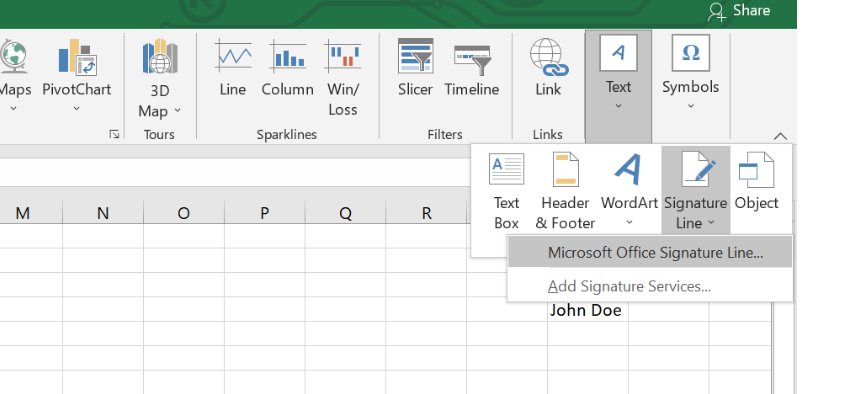
To sign the line, the signer double-clicks it and can type their name, use the inking feature for a handwritten style or click Select Image to upload a pre-made signature file. They can also right-click the signature line and select Sign to open the same dialog. The visible signature and the digital certificate are applied at the same time, so the document is both signed and protected in one step. After signing, the file becomes read-only. Any change voids the digital signature.
You can add multiple signature lines to the same Microsoft Excel file by repeating these steps. The same approach works in Word documents and PowerPoint presentations — the Insert > Signature Line path is identical across Office apps on Windows.
Note: If the file arrives as an email attachment and Excel opens it in Protected View, the intended signer must click Enable Editing before interacting with the signature line.
On Mac
The Microsoft Office Signature Line isn’t available in Excel for Mac. Mac users should use Method 3 (draw a signature), Method 4 (insert a scanned image) or sign via Signaturely instead.
Method 2: Add an Invisible Digital Signature in Excel
An invisible digital signature signs the file without placing any visible mark on the sheet. It proves the file hasn’t been altered since signing. That’s why it’s useful for internal document control.
- Open your Excel file.
- Go to the File tab and select Info.
- Click Protect Workbook, then select Add a Digital Signature.
- Complete the signing dialog (add a purpose for signing if needed) and click Sign.
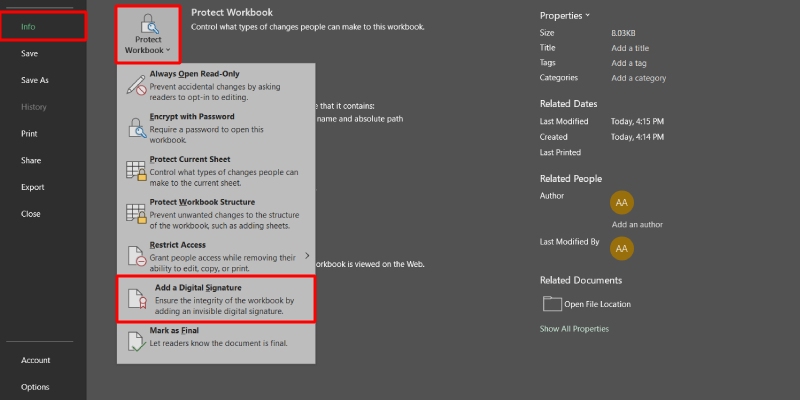
After signing, a Signatures tab appears at the bottom of the workbook. You can click it to view all signatures stored in the file. The signature isn’t visible on the sheet, but it’s verifiable by anyone who opens the document.
Method 3: Draw Your Signature in Excel
Drawing lets you add a freehand signature on the spreadsheet using your mouse, stylus or trackpad. The result works for informal documents but won’t carry the legal weight of a certified digital signature.
On Windows
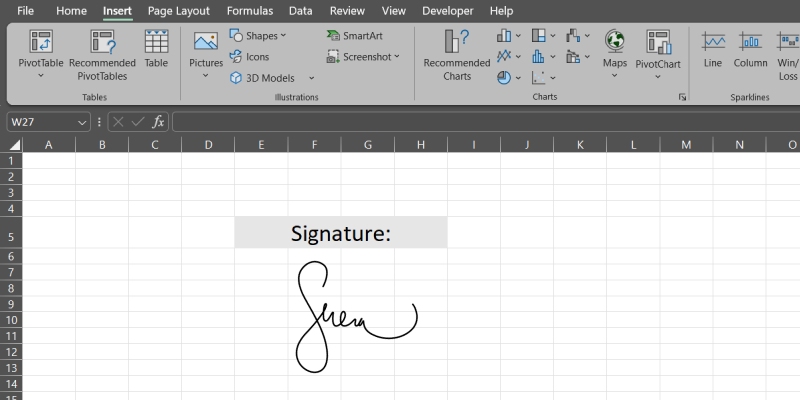
- Go to the Insert tab.
- Click Shapes, scroll down to Lines and select the Scribble tool (the wavy line icon).
- Draw your signature on the sheet with your mouse or stylus.
- Resize and reposition the drawing as needed. Right-click to format color or line weight.
On Mac
- Open your Excel file and click the Draw tab in the ribbon. (If it’s not visible, go to Excel > Preferences > Ribbon and enable the Draw tab.)
- Select a pen tool from the Draw toolbar.
- Draw your signature on the sheet, or click Draw with Trackpad and sign using the trackpad surface.
- Click off the drawing area when done.
Method 4: Insert a Handwritten Signature as an Image
This method uses an image of your real handwritten signature, making it look authentic. It’s practical for documents where a visual signature is expected but a certified digital signature isn’t needed.
- Sign your name on a blank piece of paper.
- Scan it or photograph it with your phone and save the file as a PNG or JPG.
- In Excel, go to the Insert tab and click Pictures > Pictures From File.
- Select your signature image and click Insert.
- For a cleaner result, select the image and go to Picture Format > Color > Set Transparent Color, then click the white background. This removes it without a separate image editor and keeps the signature from covering cell data below it.
- Drag the image to the right position and resize it to fit the signature area.
If you don’t have a scanner, use Signaturely’s free online signature generator to draw or type a signature and download it as an image file ready to insert.

Method 5: Type Your Signature in Excel
Typing your name is the quickest option and works on both Windows and Mac. It has no legal validation. Use it for internal sign-offs, acknowledgment records or informal documents where proof of identity isn’t needed.
- Go to the Insert tab and click Shapes > Text Box.
- Draw a text box in the signature area of your sheet.
- Type your name and choose a font that resembles a handwritten style if needed.
- Remove the text box border (Format Shape > No Line) so it blends with the sheet.
How to Request an Electronic Signature on an Excel File
Excel’s native signature line lets you set up a placeholder for a signer. It doesn’t automate the request, track progress or create a verifiable audit trail. For that, you need an e-signature tool. These platforms also cut approval time for teams that regularly sign off on contracts, form documents or data agreements — and they eliminate the paper trail entirely.
Signaturely handles the full signature request workflow and accepts Excel files, PDFs and other document formats:

- Open your Signaturely account.
- Click Sign and select who needs to sign the document.
- Upload your Excel file and add the signature fields.
- Enter your recipient’s details and an optional message.
- Send the request. Signaturely emails the signer with a guided signing flow.
Once signed, you’ll receive a completed copy with a detailed audit trail that records who viewed the document, when each person signed and from what IP address. Without question, that record is what makes e-signatures defensible under ESIGN and eIDAS: without it, you can’t prove the right person signed.
Signaturely’s free plan includes 1 document per month. The Personal plan’s $25/month (or $240/year) for 5 signature requests per month and 1 template. Business plans run $50/month per user (or $480/year) for unlimited requests, unlimited templates, team management and custom branding. Sign up for free to get started.
How to Remove a Digital Signature in Excel
There are two ways to remove a signature depending on whether it’s a visible signature line or an invisible digital signature. Neither method deletes the file. You lose only the signature record.
To remove a visible signature line: Right-click the signature line directly in the spreadsheet and select Remove Signature. Click Yes to confirm.
To remove an invisible digital signature: Go to File > Info > View Signatures. In the Signatures pane, click the arrow next to the signature name, select Remove Signature and click Yes.
Editing a signed file removes the signature too. Excel treats any content change as a potential tampering attempt and invalidates the record.
What Is a Digital Signature in Excel?
A digital signature in Excel is an encrypted stamp of authentication attached to the file. It confirms who signed the document and proves the content hasn’t changed since the moment of signing.
Digital signatures use a signing certificate from a certification authority. That’s the organization that checks the signer’s identity, the way a notary does. Most certificates last one year and need renewal after that. You can also create your own digital certificate for personal use with Excel’s SelfCert tool, though self-signed ones carry no third-party trust. They’ll work for internal records but won’t hold up in formal legal contexts, and external recipients may see a security warning when they open the file.
A digital signature guarantees four things:
- Authenticity: the signer is who they claim to be
- Integrity: the document has not been altered since signing
- Non-repudiation: the signer cannot later deny having signed
- Notarization: when time-stamped, the signature confirms when the signing occurred
Digital signatures aren’t the same as electronic signatures. An e-signature is any electronic symbol or process that indicates intent to sign — a typed name, a drawn mark or a checkbox. No cryptographic certificate is needed. A digital signature goes further: it uses a certificate to verify the signer’s identity and creates a tamper-evident seal on the file, while a plain e-signature provides no such verification. Excel’s built-in digital signature tools are the certificate-based type only.
A typed name or inserted image provides none of these guarantees. For business documents that need to hold up legally, a certified digital signature is outright the strongest option. An e-signature platform that generates a verifiable audit trail is the practical alternative.
FAQ: Signing Excel Documents
Yes, Excel lets you add a digital signature line via Insert > Text group > Add a Signature Line, or an invisible digital signature via File > Info > Protect Workbook > Add a Digital Signature. For a fully guided signing experience, use an e-signature platform like Signaturely.
Go to Insert > Text group > Add a Signature Line > Microsoft Office Signature Line on Windows. Fill in the Signature Setup dialog, click OK and the signature line appears in your spreadsheet. On Mac, the signature line is not available. Draw using the Draw tab, insert a scanned image or use Signaturely.
The Microsoft Office Signature Line is not available in Excel for Mac. Mac users can draw a signature using the Draw tab (Insert > Draw tab > pen tool, or Draw with Trackpad), insert a scanned image of their signature via Insert > Pictures, or use an e-signature tool like Signaturely to sign the file online.
A digital signature in Excel created with a certificate from a trusted certification authority can be legally binding. A typed name or inserted image does not carry the same legal weight. For contracts and documents requiring enforceable signatures, use a certified digital signature or an e-signature platform that produces a verifiable audit trail.
Conclusion
Excel gives you several ways to add a signature, from a formal digital signature line to a quick typed name. The right method depends on what the document needs: a certified digital signature for legally binding records, or a simple image or text for informal sign-offs.
If you need to send Excel files for others to sign and track the process, Signaturely handles that from start to finish. Sign up for free to send your first document today.