



If you need to email a signed document, there are three clean ways to do it. You can send a signature request with Signaturely, email back a signed PDF as an attachment or sign a document sent by email before you return it.
The right method depends on the job. If other parties still need to sign, send a signature request. If the document is already signed, send the signed copy as an attachment. If someone emailed you a PDF file to sign, open the email, sign the file and return it from your email account.
How to Email a Signed Document Using Signaturely
This is the best option when you need someone else to sign the document. Instead of emailing attachments back and forth, you upload the file, add recipients, place the signature fields and send the request from Signaturely. Because Signaturely is web-based, you can manage the signing process from any device with an internet connection.
Step 1: Upload the document and choose who needs to sign
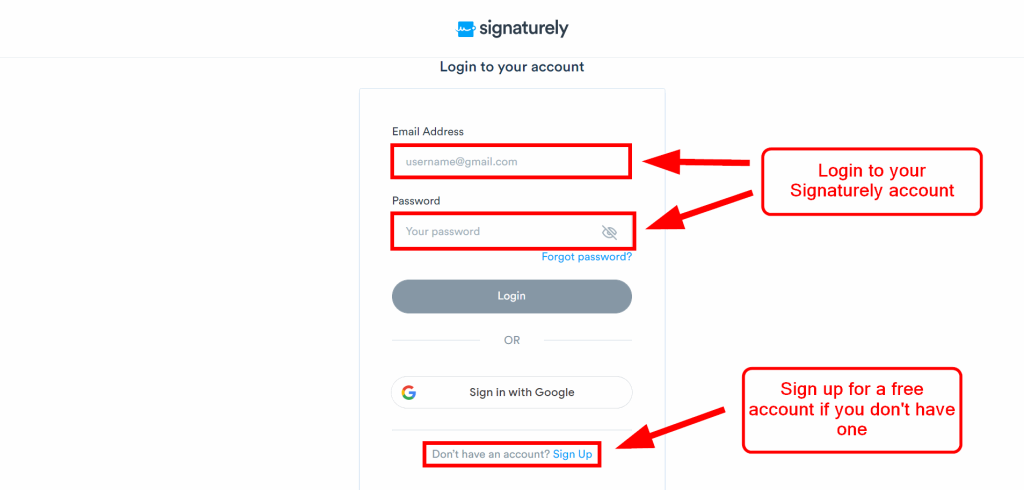
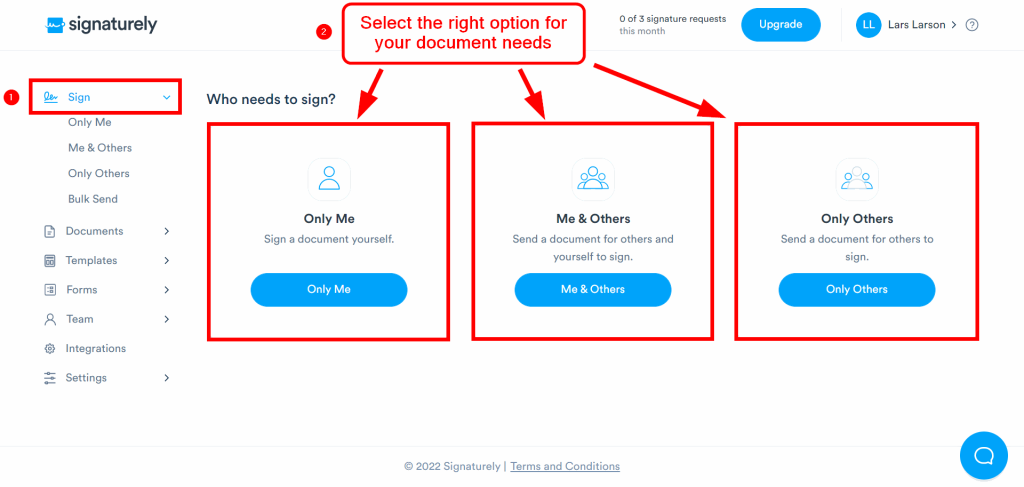
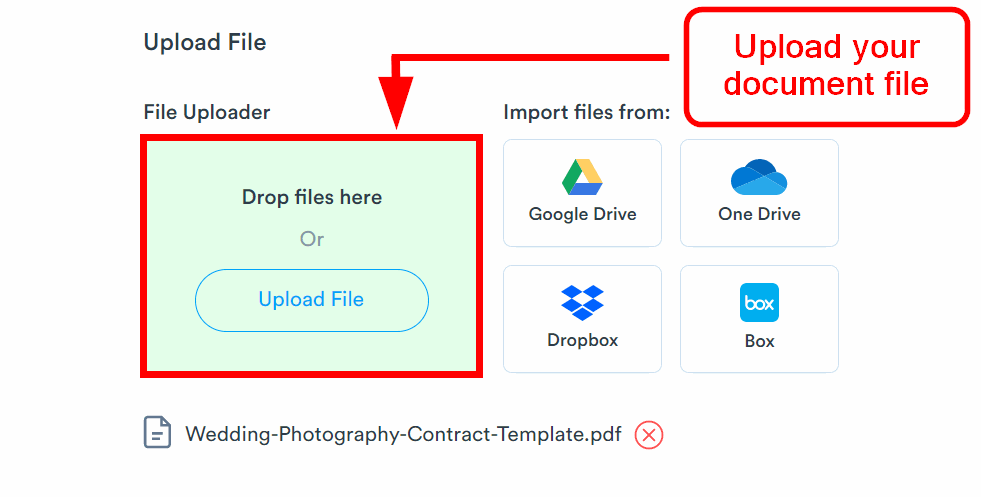
Log in to Signaturely and go to the Sign section. Choose Only Me, Me & Others or Only Others, depending on whether you are signing alone or sending a signature request to other parties. Then upload the file you want to send.
Step 2: Add recipients, email addresses and signature fields
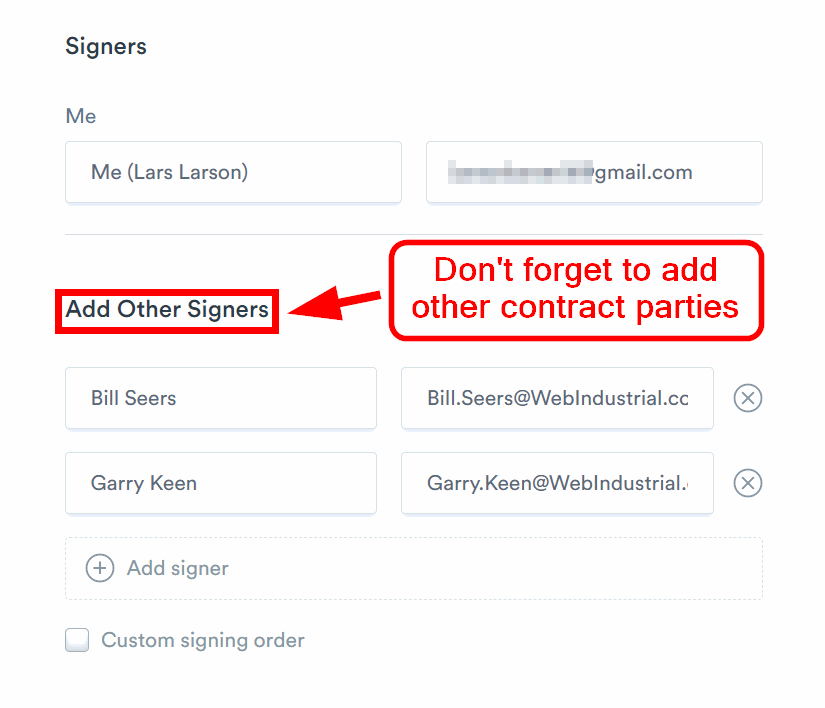
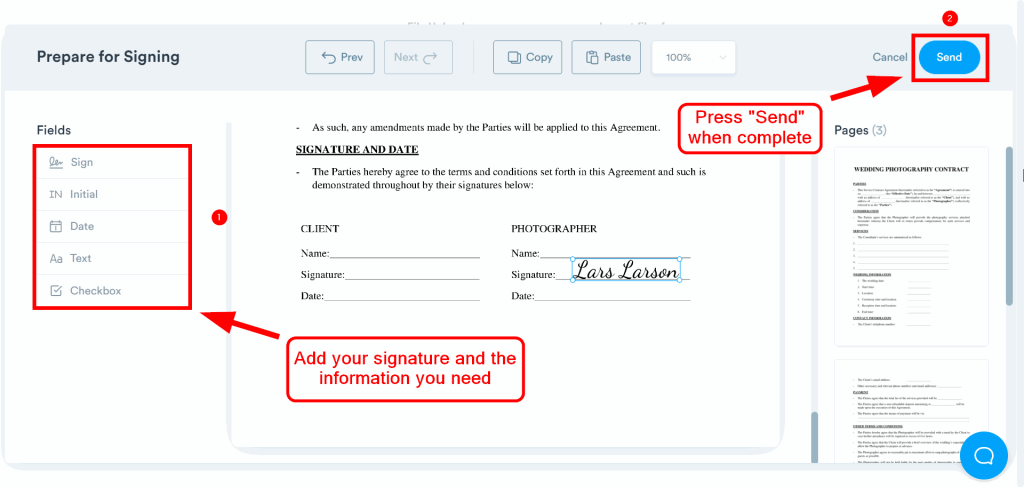
Add each recipient’s name and email address, then prepare the document for signing. Drag the signature, text and date fields onto the file so each signer knows exactly where to act.
Step 3: Review the file and click send
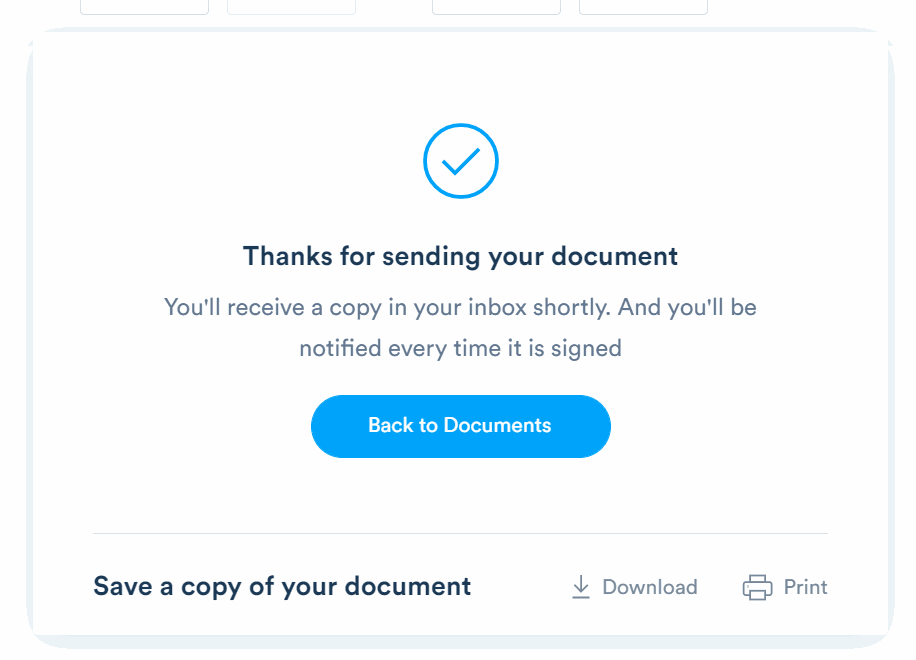
Review the document, add any message the recipients need, then click Send. Signaturely emails the signature request to the recipients so they can open the email document, sign it and complete the workflow. If you add viewers, they can receive the completed file when all signers finish. A dedicated electronic signature workflow also gives you better recordkeeping and audit-trail coverage than basic attachments.
How to Email Back a Signed Document
Use this method when the document is already signed and you only need to send it back. Save the final file as a signed PDF, attach it to your reply and send it to the recipient. PDF is usually the safest default format because it is easier to share cleanly and harder to edit by accident than an editable document.
- Open the signed file and confirm the final version is the one you want to send
- Save or download the signed document as a PDF file
- Reply to the email or start a new email to the recipient
- Attach the signed PDF and send it back
If you need a simple line to use, this works:
Please see please find attached signed document.
I look forward to your reply!
For a slightly fuller version, write:
Please see attached signed copy. Let me know if you need anything else.
I look forward to your reply!
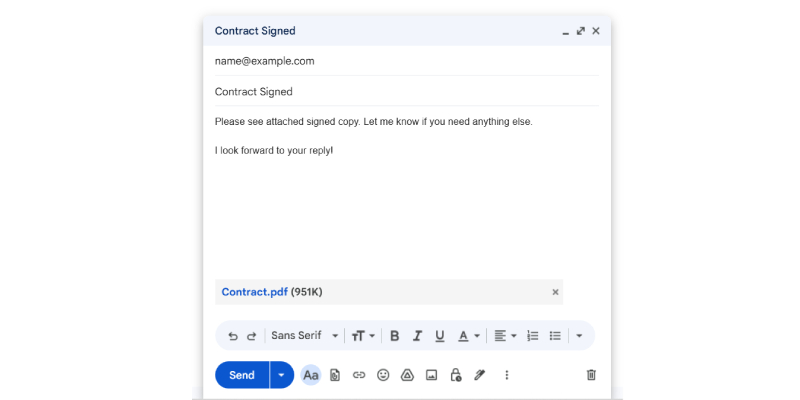
This is the fastest path for contracts, forms or approvals that are already complete. It also matches common searches like how to email back a signed document and how to send back a signed document. Before you send it, verify the recipient details so the signed document does not go to the wrong person.
How to Sign a Document Sent by Email
If someone sends you a document by email and it still needs your signature, open the email, open the attachment and sign it before you return it. This is the best fit for people searching how to sign a document sent by email or how to sign emailed documents without printing them.
In Gmail or another inbox workflow, the process is usually the same. Open the email, open or download the file, add your signature, save the signed document and send it back. Adobe Acrobat can fill and sign PDF forms, and Apple Notes can scan documents and add signatures on iPhone or iPad if you are working from a mobile device.
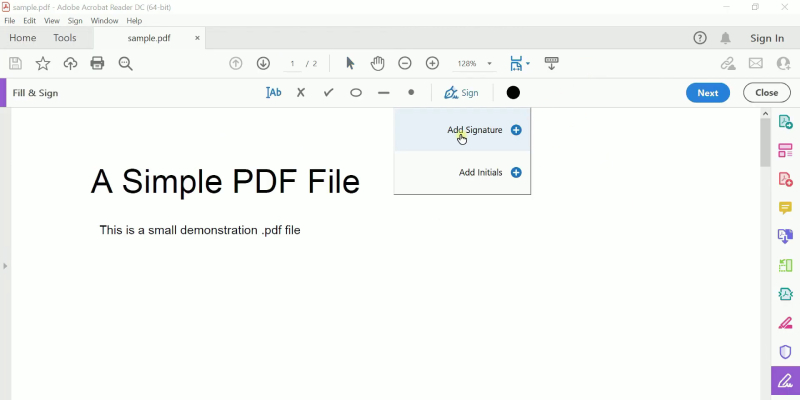
If the sender wants a formal signature request instead of a returned attachment, move back to method 1. If you just need to sign a file and send it back, a signed PDF attachment is usually enough.
FAQs About How to Email a Signed Document
How do you send a signed PDF by email?
Attach the signed PDF to your email and send it to the recipient. If the document still needs signatures from other people, send a signature request instead of a finished attachment.
How do you sign a document sent by email?
Open the attachment, sign it in a PDF editor or e-sign tool, save the updated file and reply with the signed document attached. That is the simplest answer for most email document workflows.
Should you send a signed document as an attachment or a link?
Send a link when you are requesting signatures through an e-sign platform or when the file needs extra security. Send an attachment when you already signed the file and just need to return the completed copy.
How can you sign a document without printing it?
You can sign it with an electronic signature tool or a PDF editor such as Adobe Acrobat, then save the updated file. On iPhone or iPad, Apple Notes can also scan documents and add signatures.
Why didn’t the recipient get my signed document?
Check that you sent the final attachment to the right email address, then ask the recipient to check their spam folder. If the file is large or delivery problems keep happening, send a secure signature request link instead of passing attachments back and forth.
Are electronic signatures legally valid?
Electronic signatures can be legally valid in many U.S. transactions. Under 15 U.S.C. § 7001, a signature or record cannot be denied legal effect solely because it is electronic, but your workflow and document type still matter.
Use a signature request when other parties still need to sign. Use a signed attachment when the document is already complete. Send the final copy as a PDF, verify the recipient details first and use a secure link instead of a plain attachment when the file is sensitive or large. When tracking and recordkeeping matter, dedicated electronic signature software is usually the safer business workflow.